User Authentication
The User Authentication is the initial step for users to securely access the Athena School Management System.
Workflow Overview
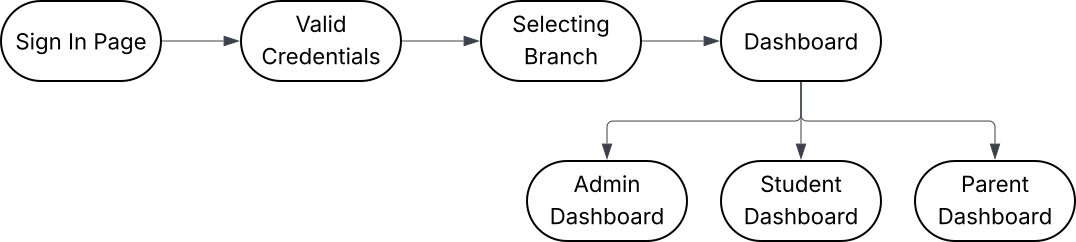
Step-by-Step Guide
1. Sign In
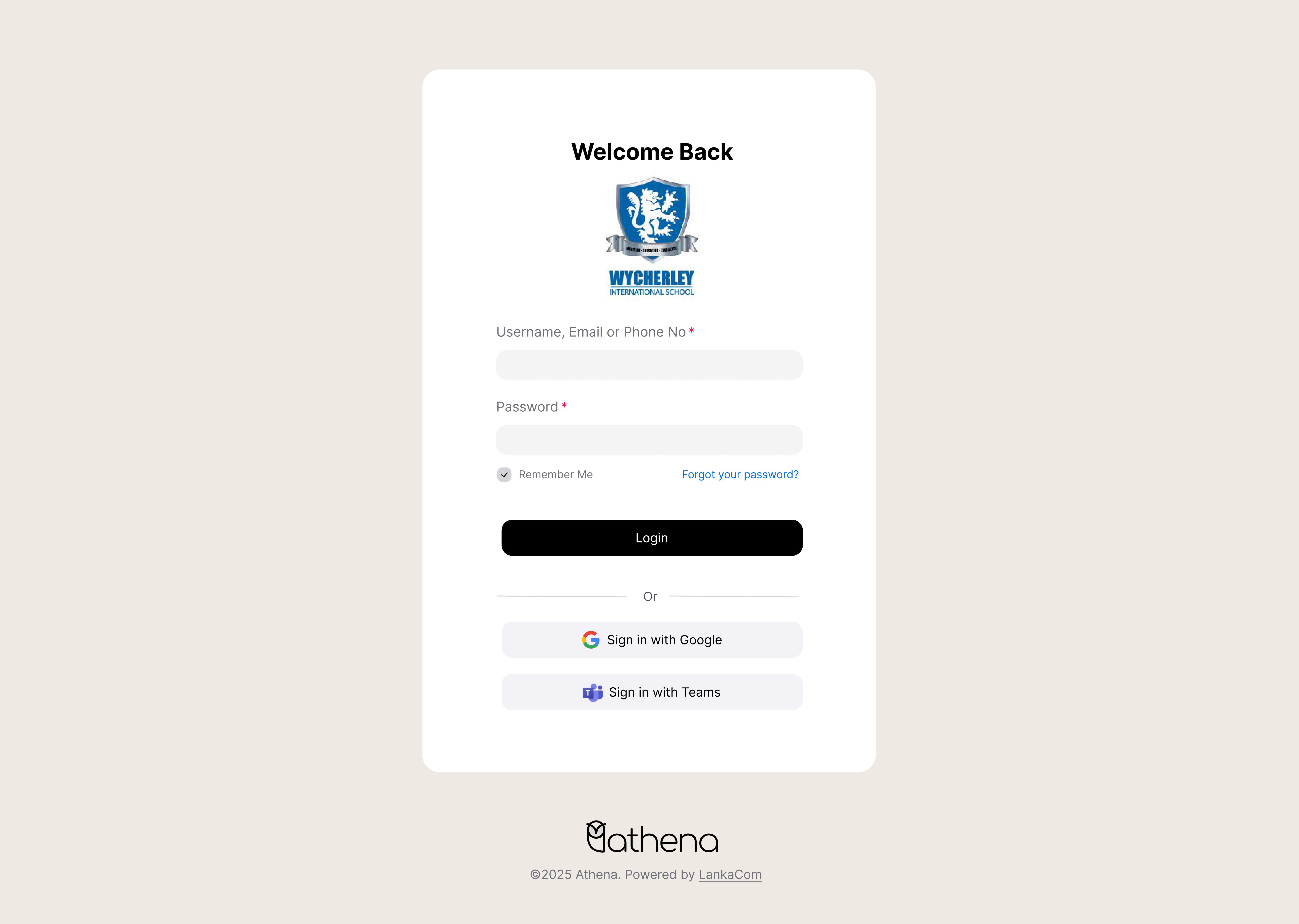
Action: The user enters their username and password, then clicks the Login button.
Result: System verifies credentials and grants access.
2. Two-Factor Authentication (2FA)
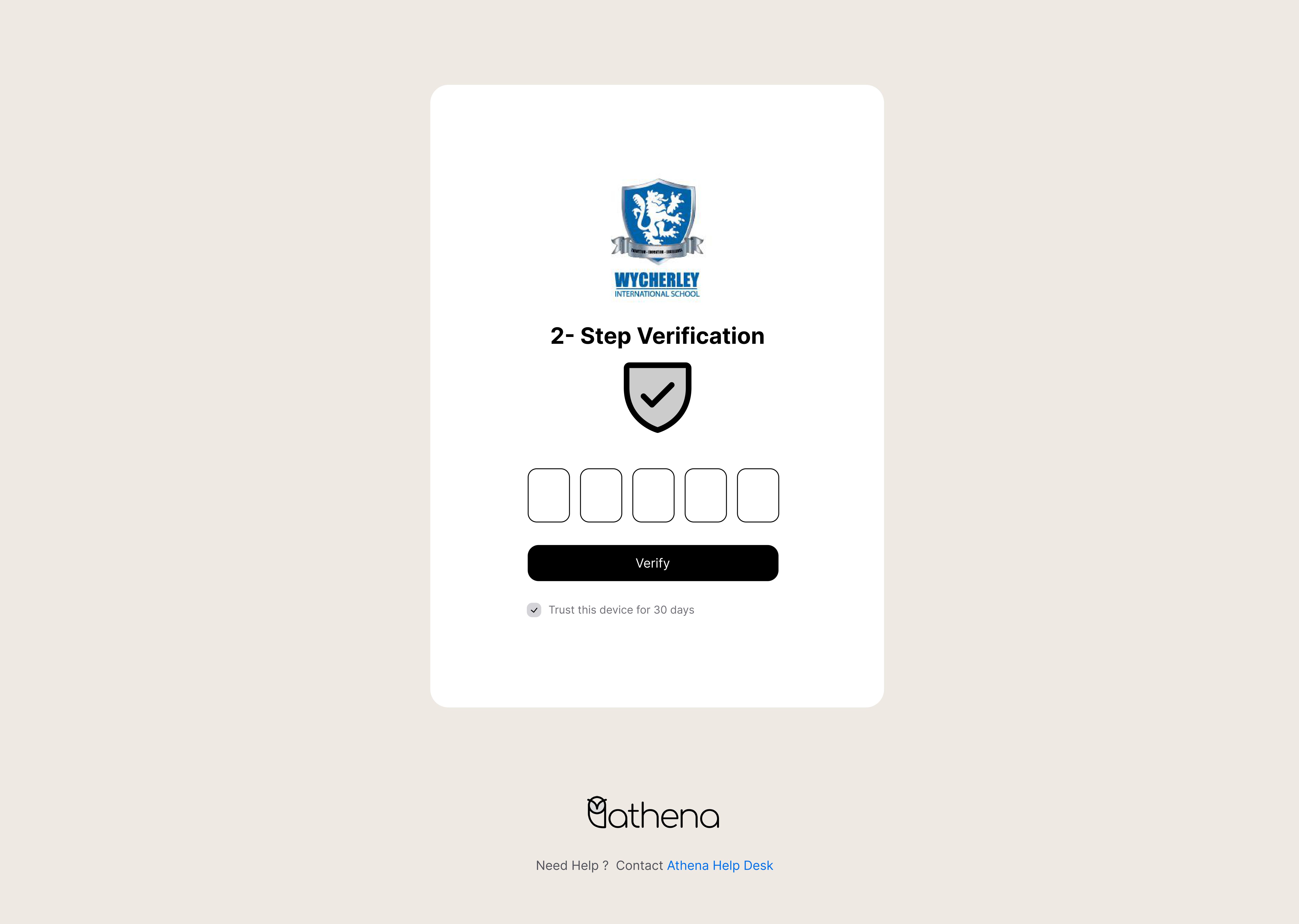
Action: After successful login, users may be prompted to complete Two-Factor Authentication (2FA).
Result: The system will send a verification code to the user’s registered email or mobile number.
The user enters the received code into the 2FA Verification form.
3. Password Reset
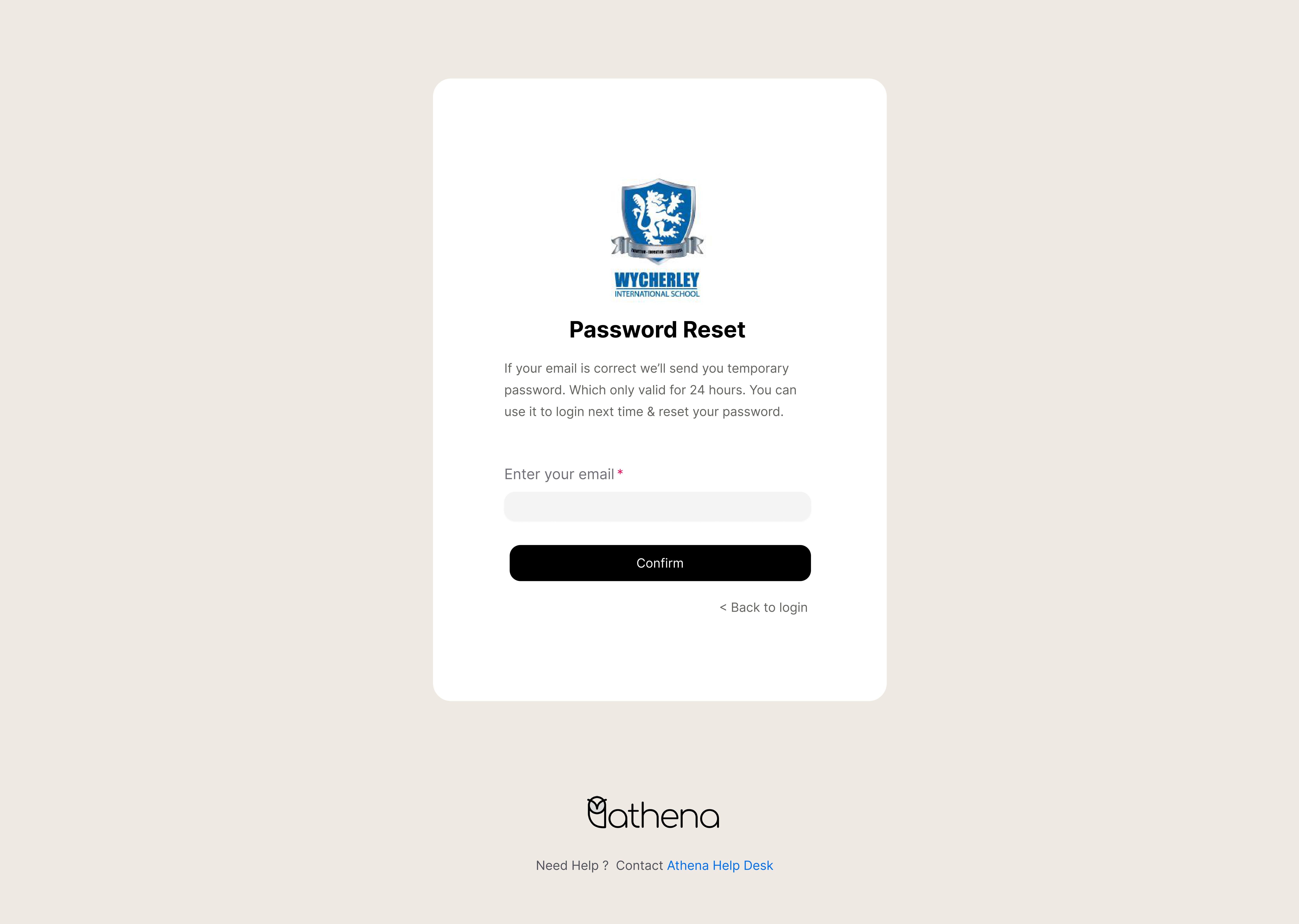
Action: If users forget their password, they can click the Forgot Password? link on the Sign In page.
Result: Users will be prompted to enter their registered email address.
A password reset link will be sent to the user’s email.
Action: The user clicks the link and is redirected to a page where they can create a new password.
Result: The password is successfully updated, and the user can log in with the new password.
4. Change Password
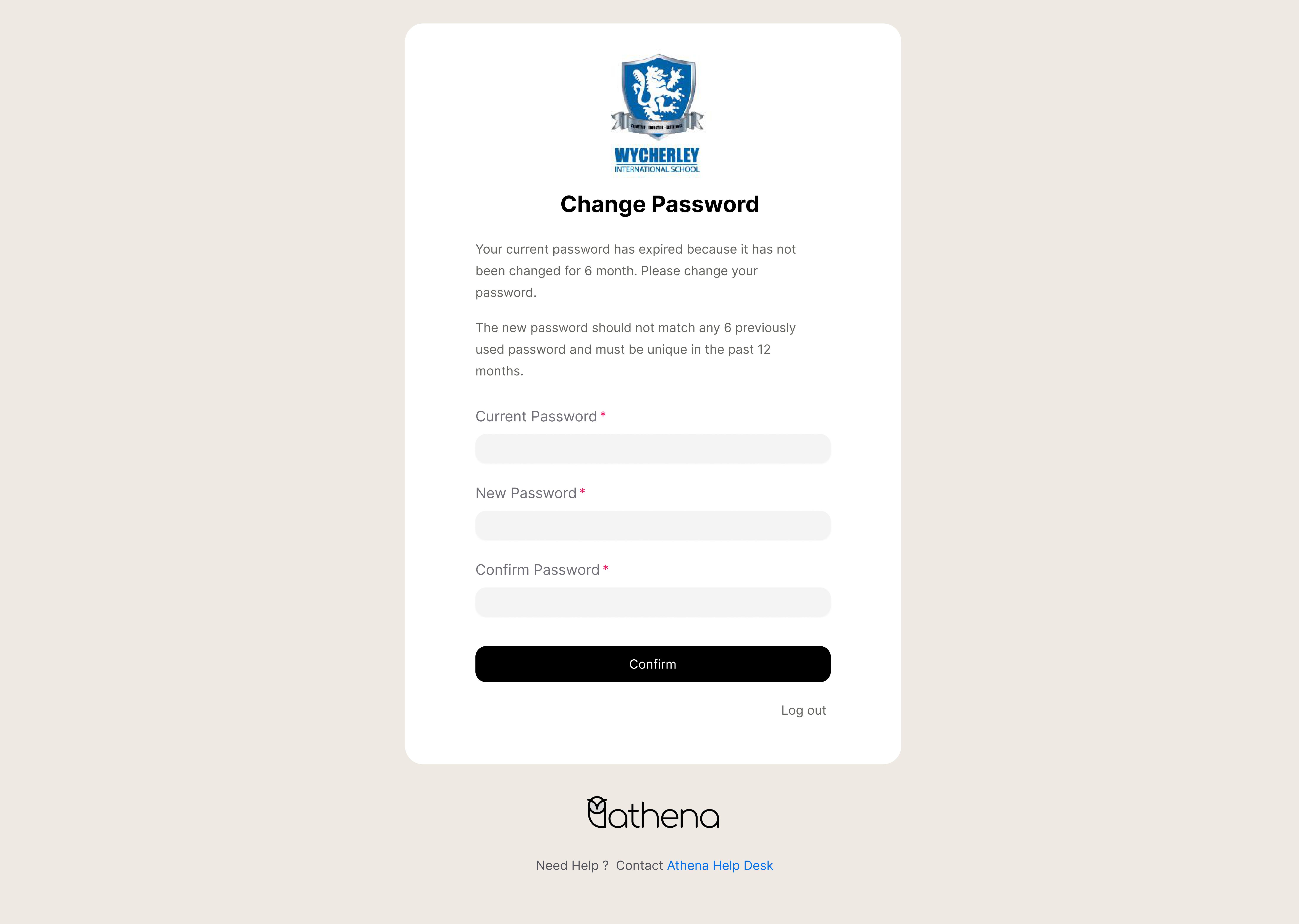
Action: Users who are logged into the system can change their password by navigating to their Profile or Settings page.
Result: Users are required to enter their current password.
Then, they enter a new password and confirm it.
Action: Click the Save Changes button.
Result: The password is successfully changed.
5. Select Working Branch
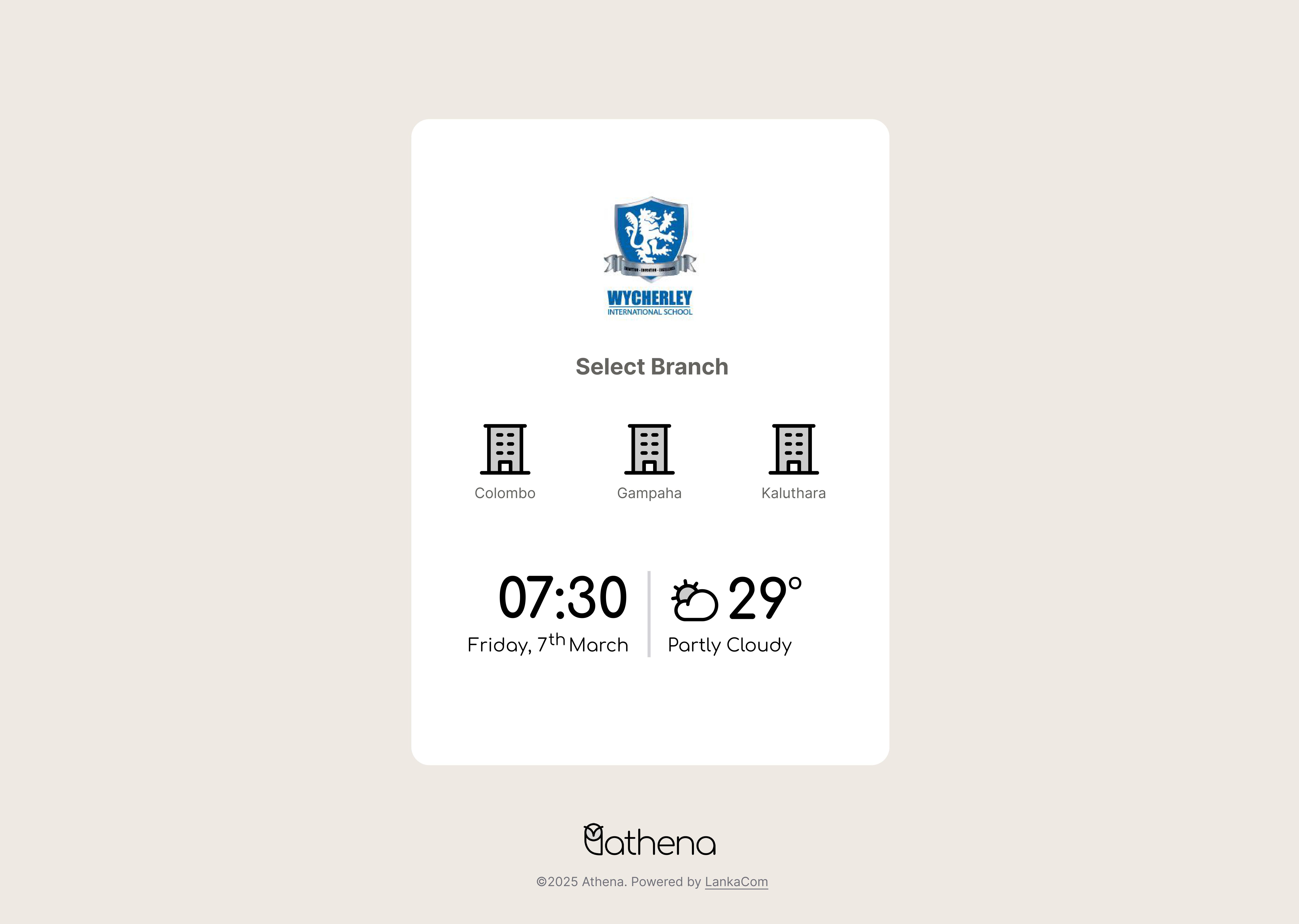
Action: System redirects to the branch selection page.
Result: User selects the branch they want to manage.
6. Dashboard
Action: System loads the appropriate dashboard based on user roles separetely for admins, students and parents.
Result: User sees data relevant to their role and selected branch.