User Support – Support Center
The User Support module provides an easy way for users to submit new tickets, track their existing requests, and directly contact the support team.
Workflow Overview
🏠 Home > 🎧 Support > 🧑🏽)) User Support
Layout
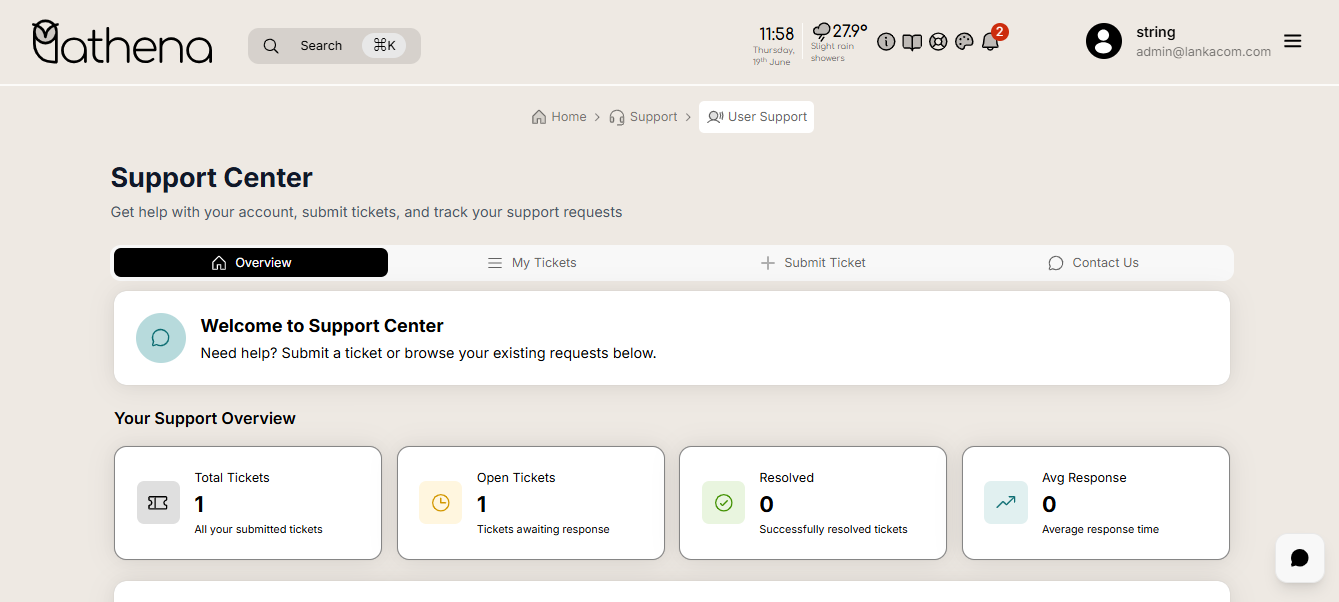
Navigation Tabs
-
Overview – Gives a quick snapshot of total, open, and resolved tickets, along with average response time and quick access to support actions.
-
My Tickets – Allows users to view, search, filter, and manage all their submitted support requests.
-
Submit Ticket – Provides a guided form for users to report issues or request assistance in a structured way.
-
Contact Support – Offers alternative contact methods like live chat, phone, and email, and includes a contact form for direct inquiries.
Key Features
Overview

- Welcome to the Support Center – Submit a ticket or browse your existing support requests.
Ticket Summary
-
Total Tickets – Displays the total number of tickets you have submitted.
-
Open Tickets – Shows tickets that are awaiting a response from the support team.
-
Resolved Tickets – Lists all successfully resolved support tickets.
-
Avg. Response Time – Shows the average time taken to respond to your tickets.
Quick Actions
-
Submit New Ticket – Report an issue or request help from the support team on the Submit Ticket.
-
View My Tickets – Check the current status of your submitted support requests on the My Tickets.
-
Contact Support – Get direct assistance from the support team on the Contact Us.
My Tickets
-
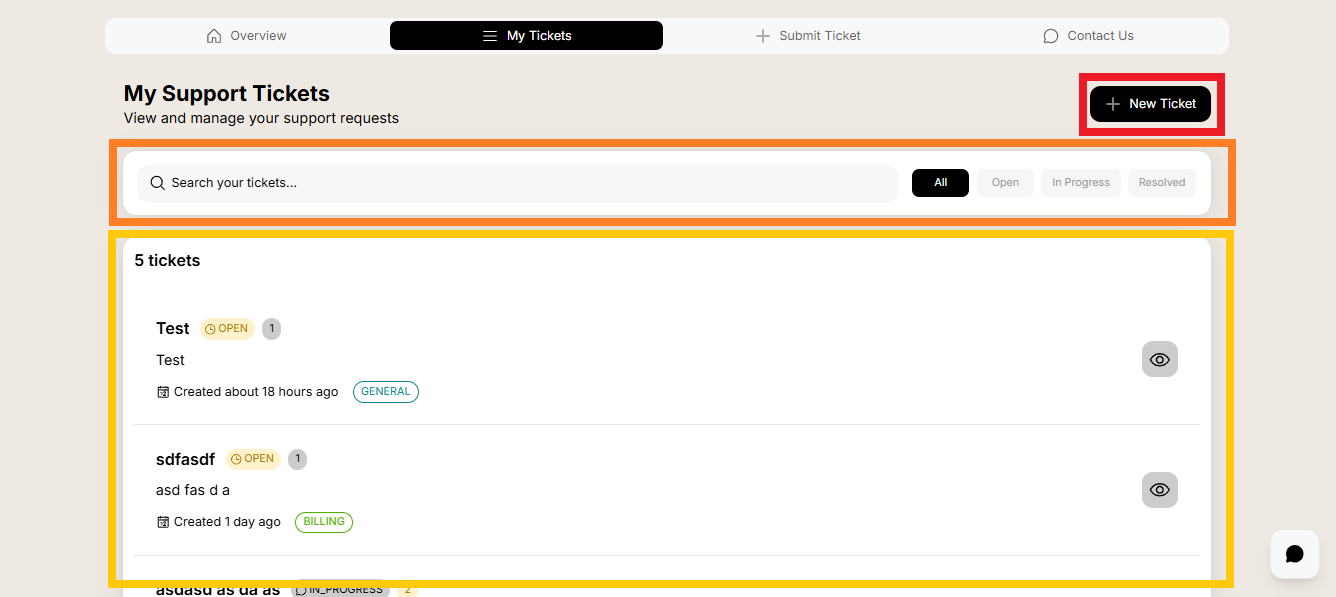
My Support Tickets – View and manage the status of your support requests.
-
New Ticket Button – Opens a form to create a new support ticket on Submit Ticket.
-
Search & Filter – Search and filter your tickets using the search bar or filter tabs: All | Open | In Progress | Resolved.
-
Ticket List – Tickets are listed with subject, status, category, creation time, and an action button.
-
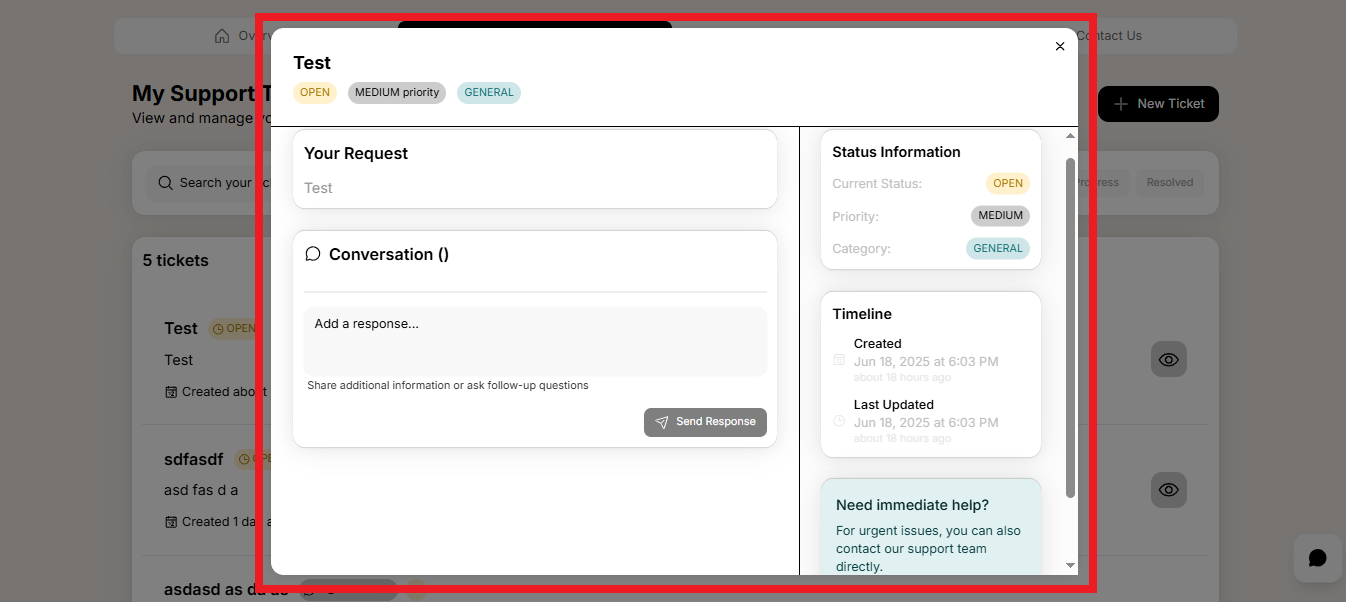
View Ticket - Clicking a ticket shows detailed info, including the subject, status, timeline, and a button to contact support.
Submit Ticket
-
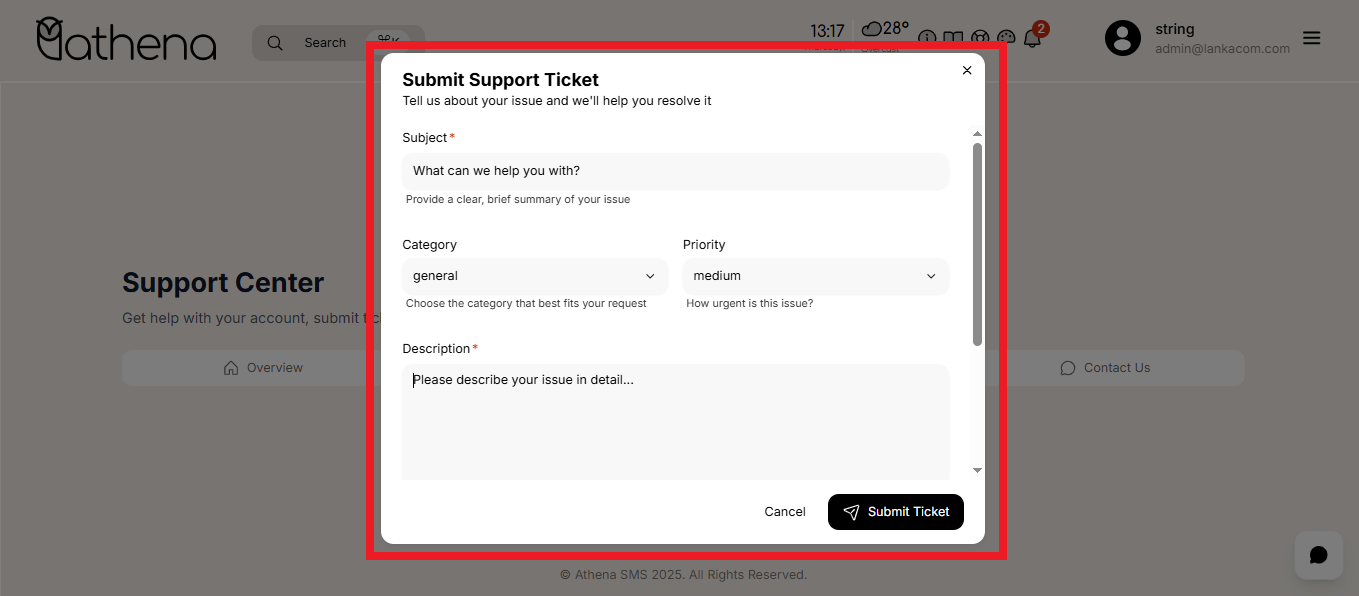
Subject – Enter a brief summary of your issue.
-
Category – Select a category that best matches your issue: Technical | Billing | General | Bug Report | Feature Request | Unrecognized.
-
Priority – Choose the urgency level: Low | Medium | High | Urgent | Unrecognized.
-
Description – Provide a detailed explanation of your issue.
-
Tips for Faster Resolution – Include error messages, steps to reproduce, browser/OS info, and screenshots.
Contact Support
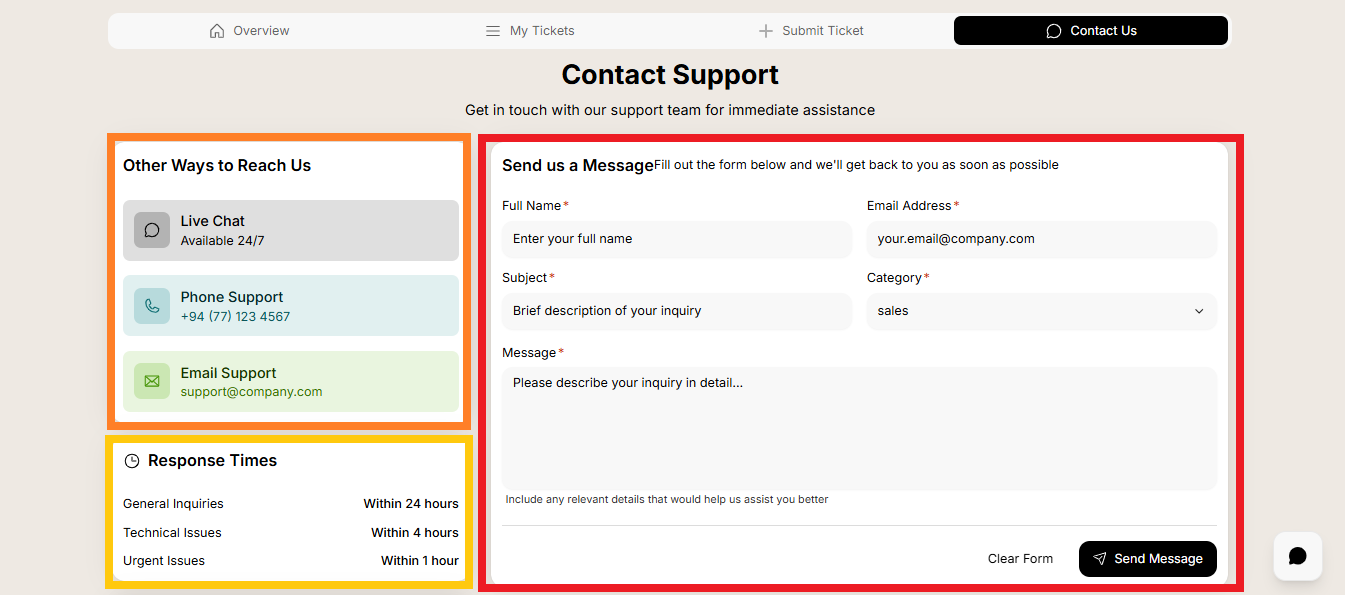
Other Ways to Reach Us
-
Live Chat – Available 24/7 to chat with support agents.
-
Phone Support – Call us directly at +94 XXX XXX XXX.
-
Email Support – Contact support via email at support@company.com.
Response Time Expectations
-
General Inquiries – Receive a reply within 24 hours.
-
Technical Issues – Expect a response within 4 hours.
-
Urgent Issues – Receive help within 1 hour for urgent matters.
Contact Form
-
Full Name – Enter your complete name.
-
Email Address – Provide your contact email address.
-
Subject – Give a brief title for your inquiry.
-
Category – Choose from: General Contact | Sales | Technical Contact | Billing Contact | Unrecognized.
-
Message – Describe your inquiry in detail to help the team assist you better.