Access and Permissions
The Access and Permissions page in the Athena School Management System allows administrators to manage user roles, permissions, and statuses, ensuring secure and role-based access to the system.
Workflow Overview
🏠 Home > ⚙️ Control Center > 🛡️ Access & Permissions
Layout
Key Features
-
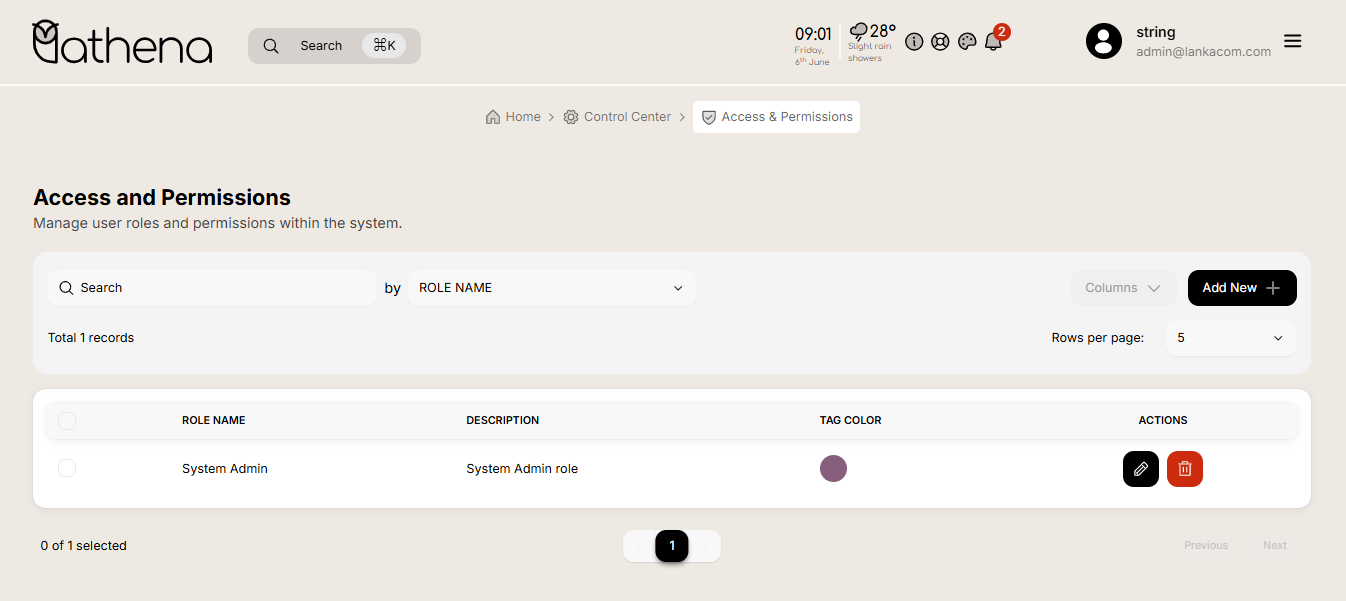
Add New Role - An option for creating new user roles with specific permissions.
-
Total Users by Role - Displays the total number of users with their roles in the system.
-
Search Functionality – Quickly find tenants using keyword search.
-
Filter Options – Filter tenants by role name, description, tag color or actions using a dropdown.
-
Column Management – Show or hide specific table columns such as Name, Description, Tag Color and Actions.
-
Pagination Control – View tenants in batches of 5, 10, or 15 rows per page.
-
Bulk Selection – Select multiple tenants and track how many are selected.
Add New Role
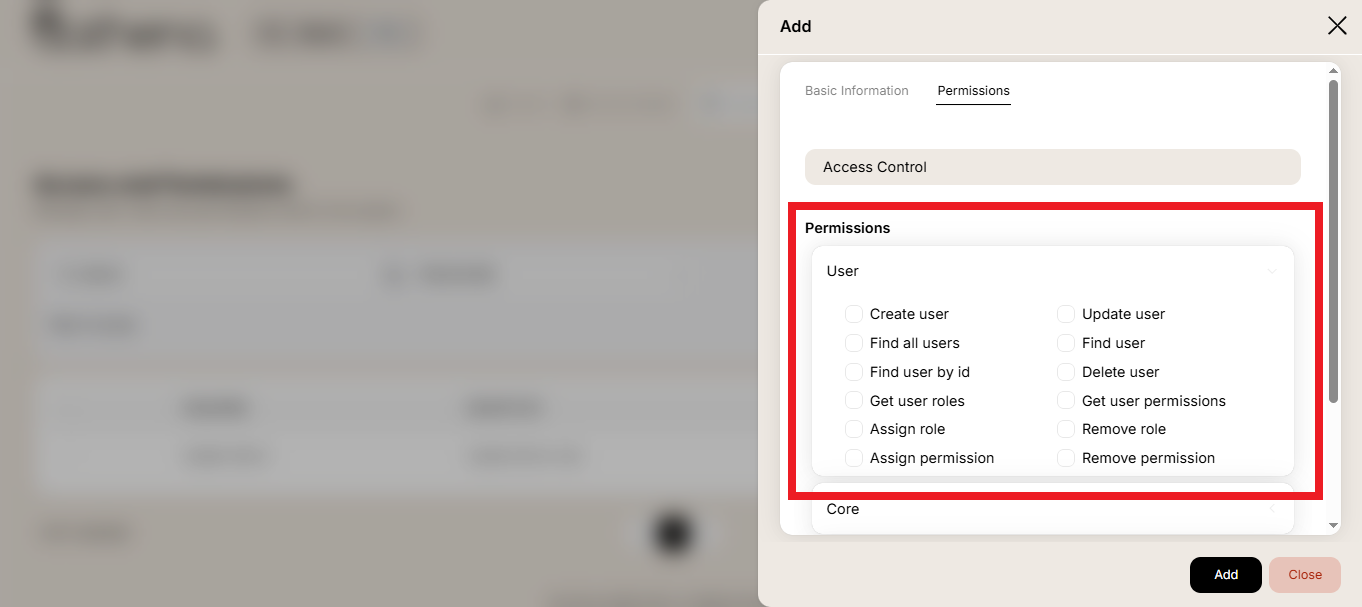
Clicking the “Add New” button opens a detailed form to create a new user role with specific access permissions across the system.
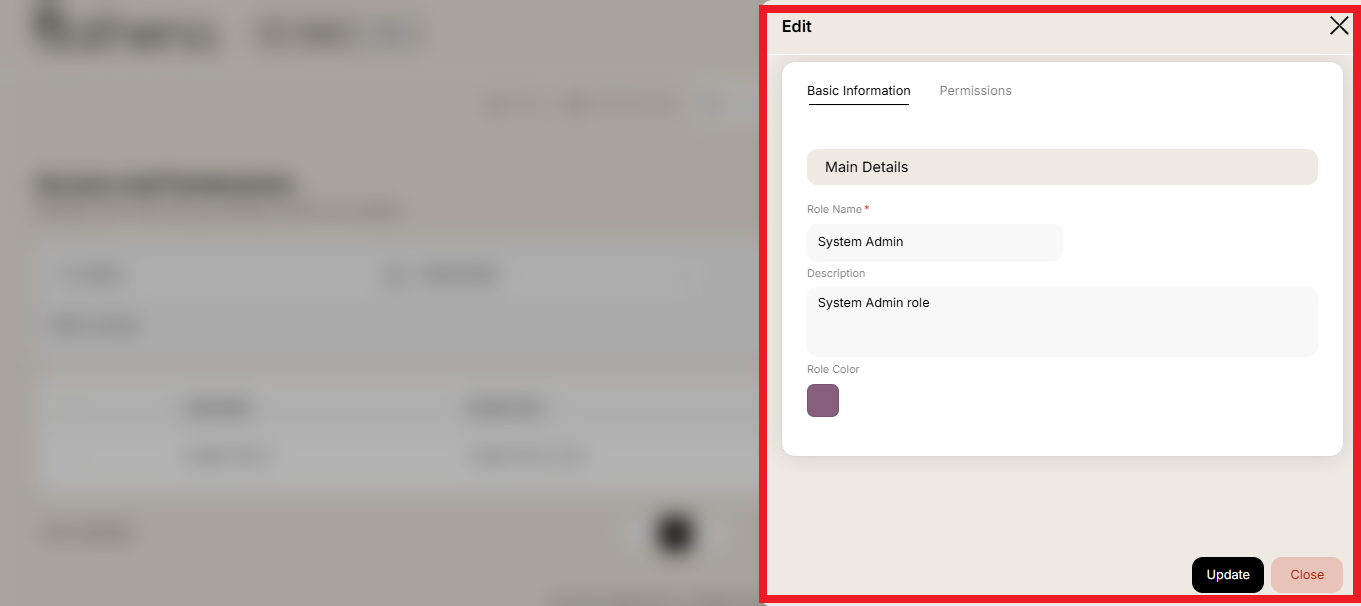
Basic Information
Main Details
-
Role Name – Enter the name for the new role.
-
Description – Provide a short description explaining the purpose of the role.
-
Role Color – Select a color that visually represents the role for easy identification across the system.
Permissions
Access Control
User Permissions - Manage user accounts, including creating, updating, assigning roles and permissions, and removing users from the system.
-
Create User – Allows the role to create new user accounts.
-
Find All Users – Grants access to view all users in the system.
-
Find User by ID – Permits retrieving user details using a specific ID.
-
Get User Roles – Enables viewing all roles assigned to a specific user.
-
Assign Role – Grants permission to assign roles to users.
-
Assign Permissions – Allows assigning specific permissions to users.
-
Update User – Enables editing or updating user information.
-
Find User – Grants access to search for a user using specific filters.
-
Delete User – Allows deletion of a user from the system.
-
Get User Permissions – Permits viewing all permissions assigned to a user.
-
Remove Role – Enables removal of a role from a user.
-
Remove Permissions – Allows revoking previously assigned permissions from a user.
Core Permissions - Handle tenant-related operations such as creating, updating, viewing, and deleting tenant information.
-
Create Tenant – Grants permission to register a new tenant.
-
Update Tenant – Allows editing existing tenant details.
-
Find All Tenants – Enables viewing a list of all registered tenants.
-
Find Tenant – Permits retrieving details of a specific tenant.
-
Delete Tenant – Grants access to delete a tenant from the system.
API Permissions Generate Key – Allows the generation of new API keys.
-
Get Key by ID – Enables retrieval of a specific API key using its ID.
-
Validate Key – Permits validation of an API key to check if it’s active and valid.
-
Get Keys – Grants access to view all API keys in the system.
-
Delete Key – Allows deletion of an API key.
-
Update Key – Enables modification of an existing API key.
-
Get User by ID – Permits retrieving a user’s information linked to an API key.
-
Get Key by Tenant ID – Allows viewing all API keys associated with a specific tenant.
Role Permissions - Manage role configurations by creating, updating, viewing, and deleting user roles within the system.
-
Create Role – Grants permission to add a new role to the system.
-
Update Role – Allows editing the name, description, or permissions of a role.
-
Get Roles – Enables viewing all available roles in the system.
-
Delete Role – Permits deletion of a role from the system.
Role Table Overview
-
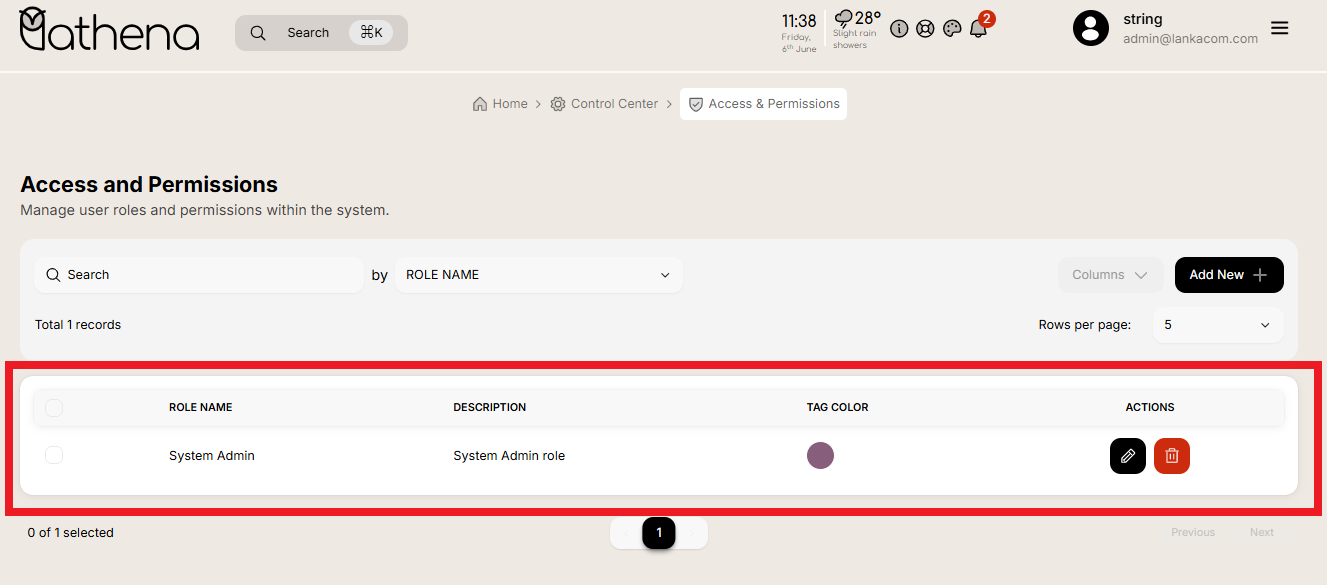
Checkbox - Select multiple users for bulk actions.
-
Role Name - Displays the name of the user role.
-
Role Description - Provides a brief description of the user role.
-
Tag Color - Shows a color indicator associated with the role.
Action - Options to edit or delete the role.
- Edit Role – Allows modifying the role’s name, description, color, or assigned permissions.
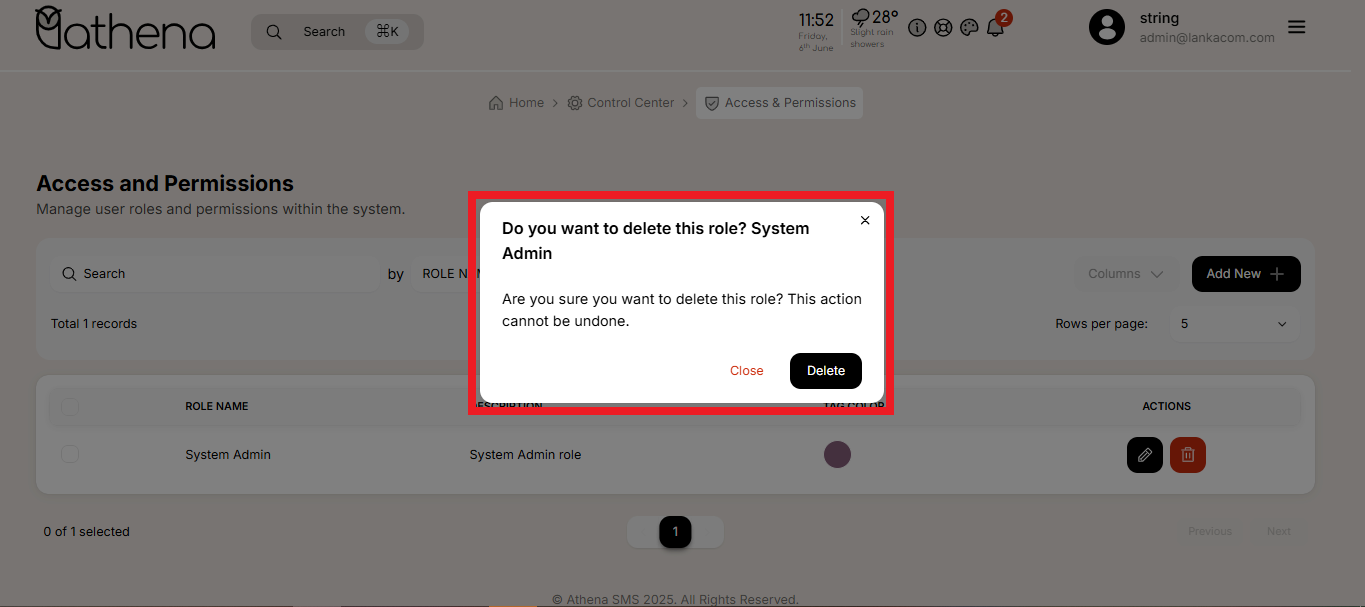
- Delete Role – Permanently removes the selected role from the system after confirmation.