Roles
Manage user roles and permissions within the system.
Workflow Overview
🏠 Home > ⚙️ Control Center > 🛡️ Access & Permissions > 👤⚙️ Roles
Layout
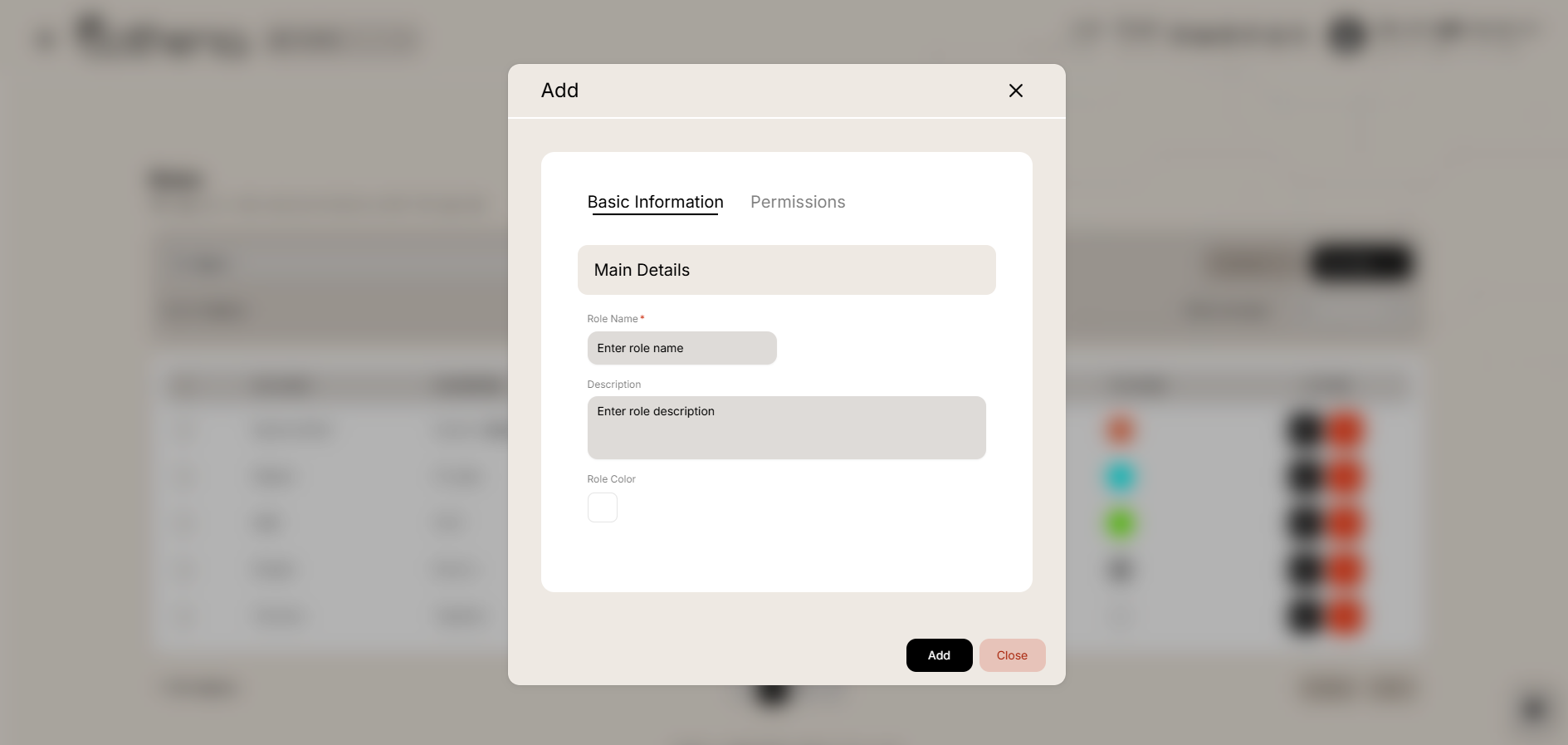
Add New Role
The Basic Information tab captures the core details of the role.
-
Role Name – Enter the name of the role.
-
Description – Enter a brief description of the role's purpose and responsibilities.
-
Role Color – Select or assign a color tag for visual identification across the system.
-
Please add unique values for the role name.
The Permissions tab defines access control for the role through a structured permissions list.
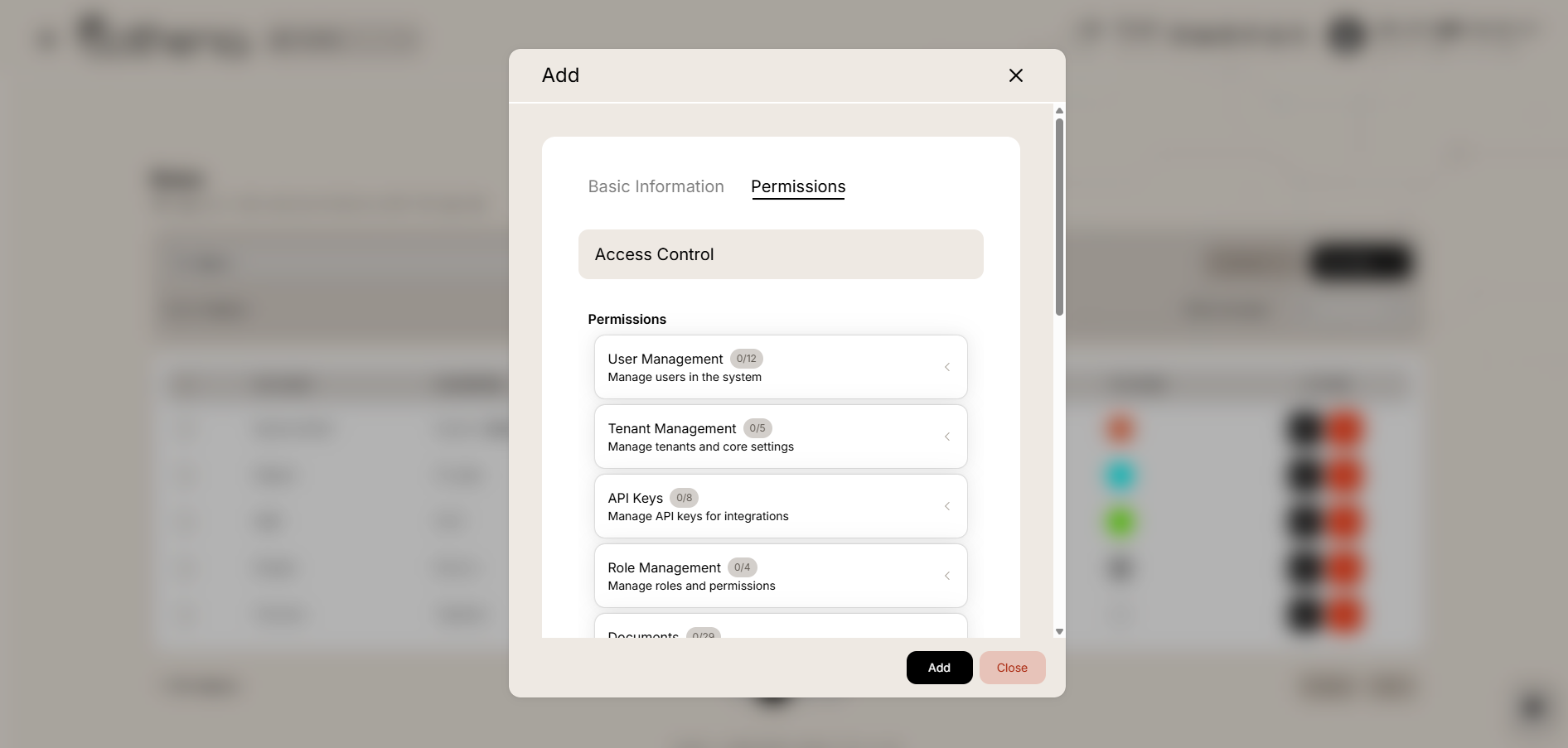
Access Control
Configure granular permissions organized by the following categories:
| Permission Category | Description |
|---|---|
| User Management | Manage users in the system |
| Tenant Management | Manage tenants and core settings |
| API Keys | Manage API keys for integrations |
| Role Management | Manage roles and permissions |
| Documents | Manage documents, categories, and assets |
| Enrollment | Manage student enrollment and admissions |
| Academic | Manage curriculum, grades, classes, and subjects |
| Audit Logs | View and manage audit logs |
| Students | Manage student records |
| Staff | Manage staff members |
| Communications | Manage announcements, news, and messaging |
| Settings | Manage system settings |
| Billing | Manage accounts, fees, invoices, and transactions |
| Support | Manage support tickets |
| Analytics | View and manage analytics and reporting |
Each permission category displays:
-
Category Name – The module or functional area being configured.
-
Category Description – Brief explanation of what the category controls.
-
Permission Count – Shows assigned permissions out of total available.
-
Toggle/Checkbox – Enable or disable permissions for each category, with optional granular sub-permissions available upon expansion.
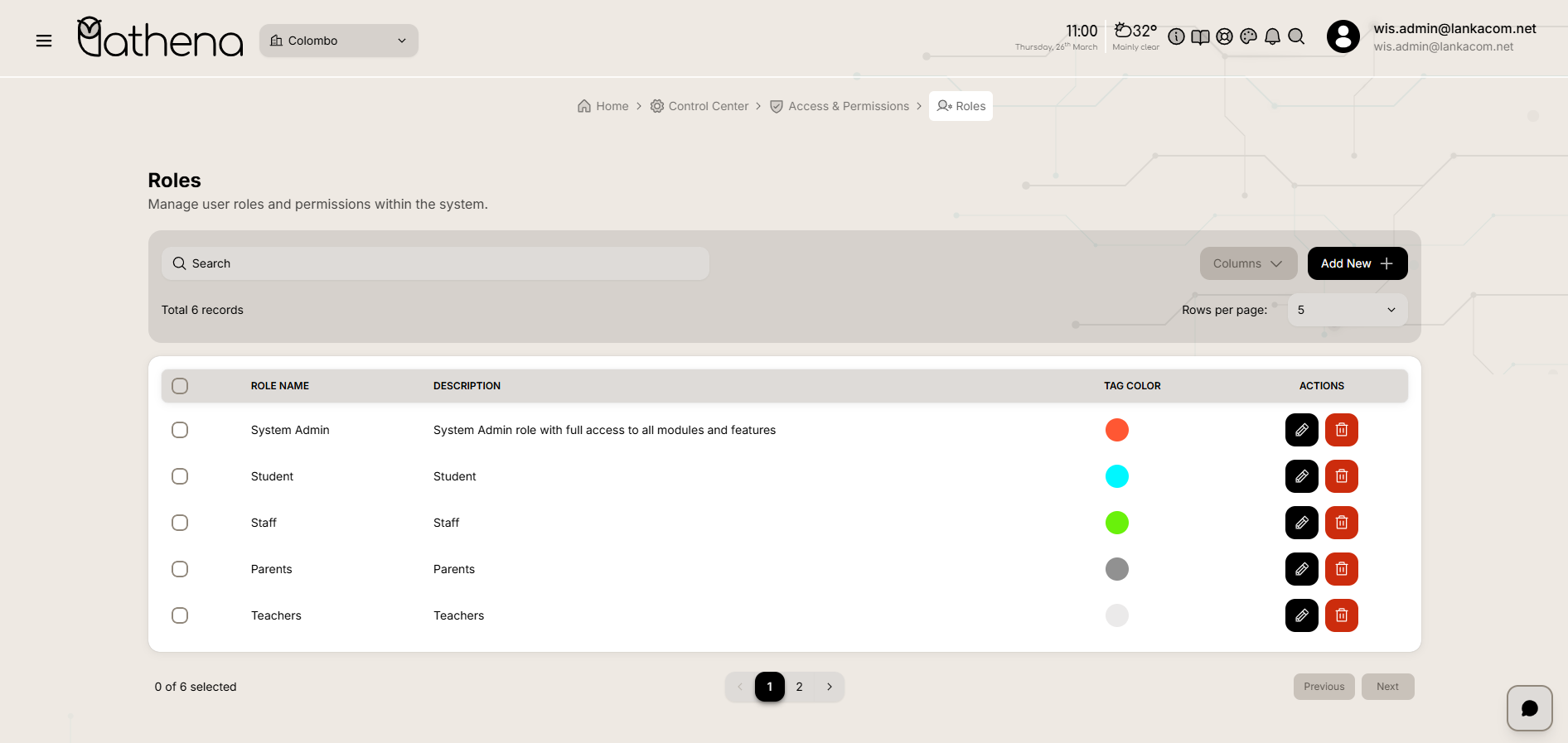
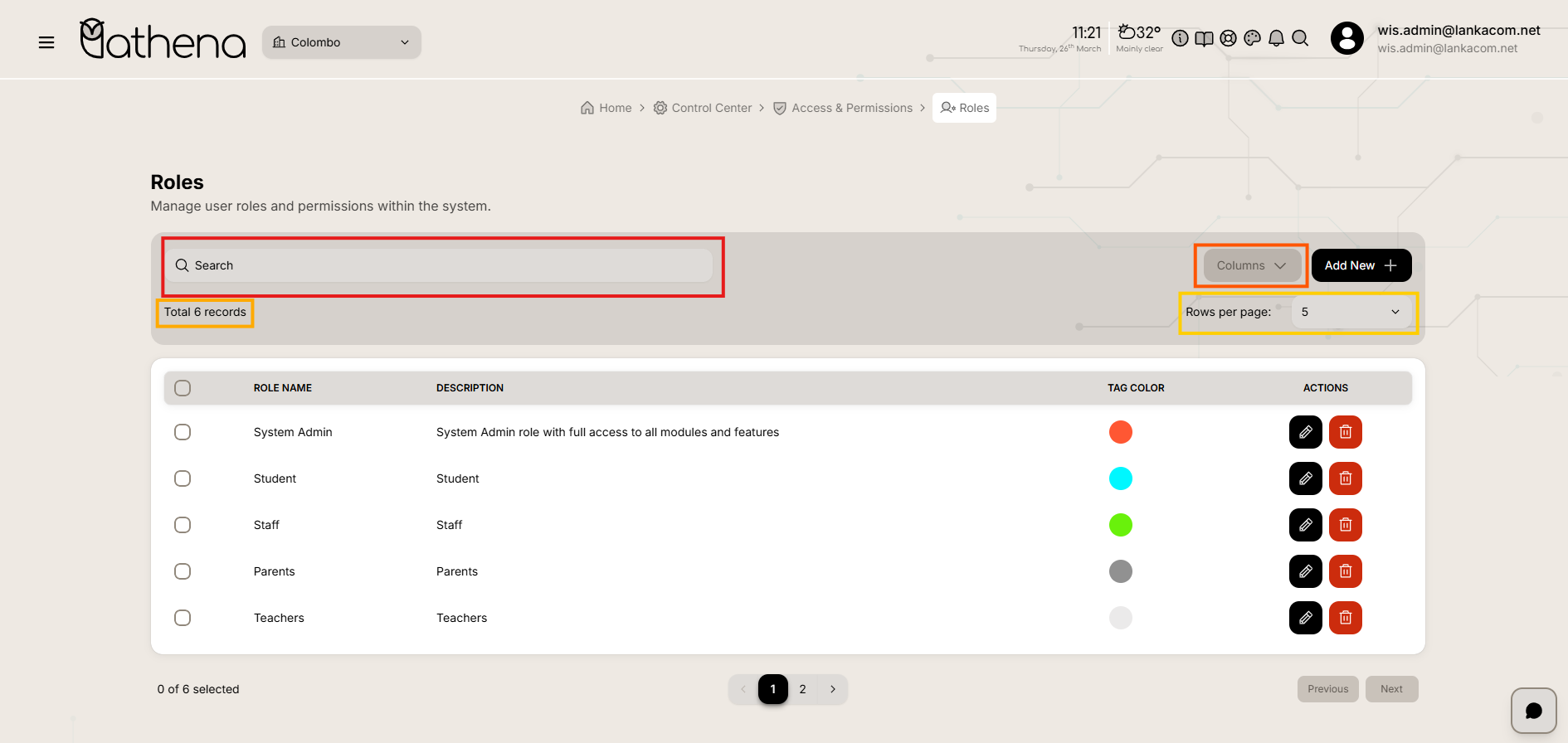
Roles List Table
-
Role Name – Displays the name of the role, such as System Admin, Student, Staff, Parents, or Teachers.
-
Description – Shows a brief description of the role's purpose and access level.
-
Tag Color – Indicates the color-coded tag associated with the role for visual identification.
-
Actions – Click the action icons to edit, or delete a role.
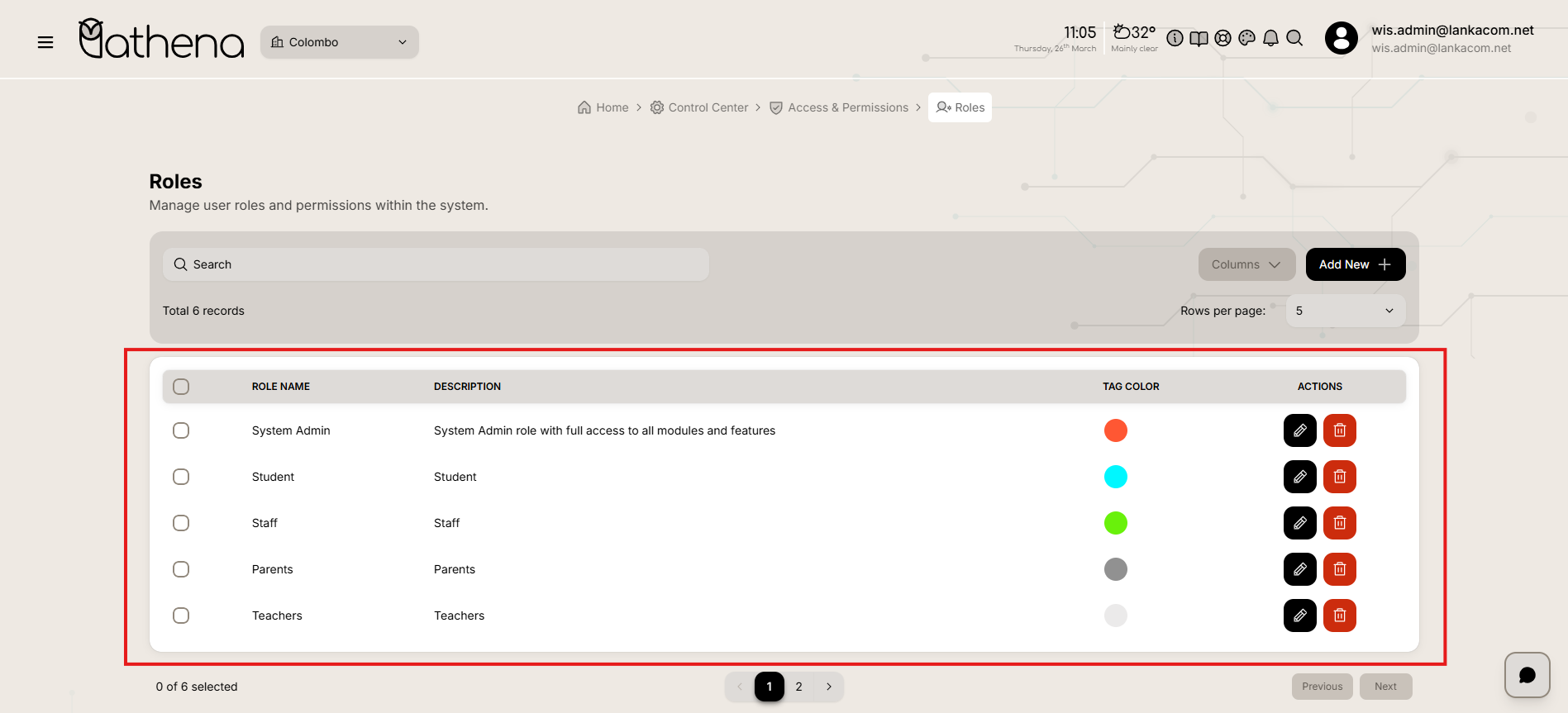
Roles Management Actions
-
Edit – Modify role name, description, tag color, and associated permissions.
-
Delete – Remove a role from the system with the following restriction:
Delete Role – Only allowed if there are no users or permission assignments currently associated with that role.
Table Controls
-
Search Bar – Quickly filter and locate specific roles by name or description.
-
Records Count – Displays the total number of roles available, such as Total 6 records.
-
Columns – Customize which columns are visible in the table view.
-
Rows Per Page – Adjust the number of records displayed per page for easier navigation.
Key Features
-
Centralized Role Management – View and manage all user roles from a single interface.
-
Granular Permissions Control – Define precise access levels across modules, including User Management, Tenant Management, API Keys, Role Management, Documents, Enrollment, Academic, Audit Logs, Students, Staff, Communications, Settings, Billing, Support, and Analytics.
-
Visual Role Identification – Assign color tags to roles for quick visual recognition throughout the system.
-
Streamlined Role Creation – Create new roles with a two-step process covering basic information and comprehensive permissions.